
FlowZones™: How I Stopped My 3D Website from Hijacking the Scroll Wheel
Explore a 3D world without getting stuck inside it. FlowZones uses dedicated interaction areas to combine camera controls, natural page scrolling and touch-friendly navigation, without Enter and Exit buttons.
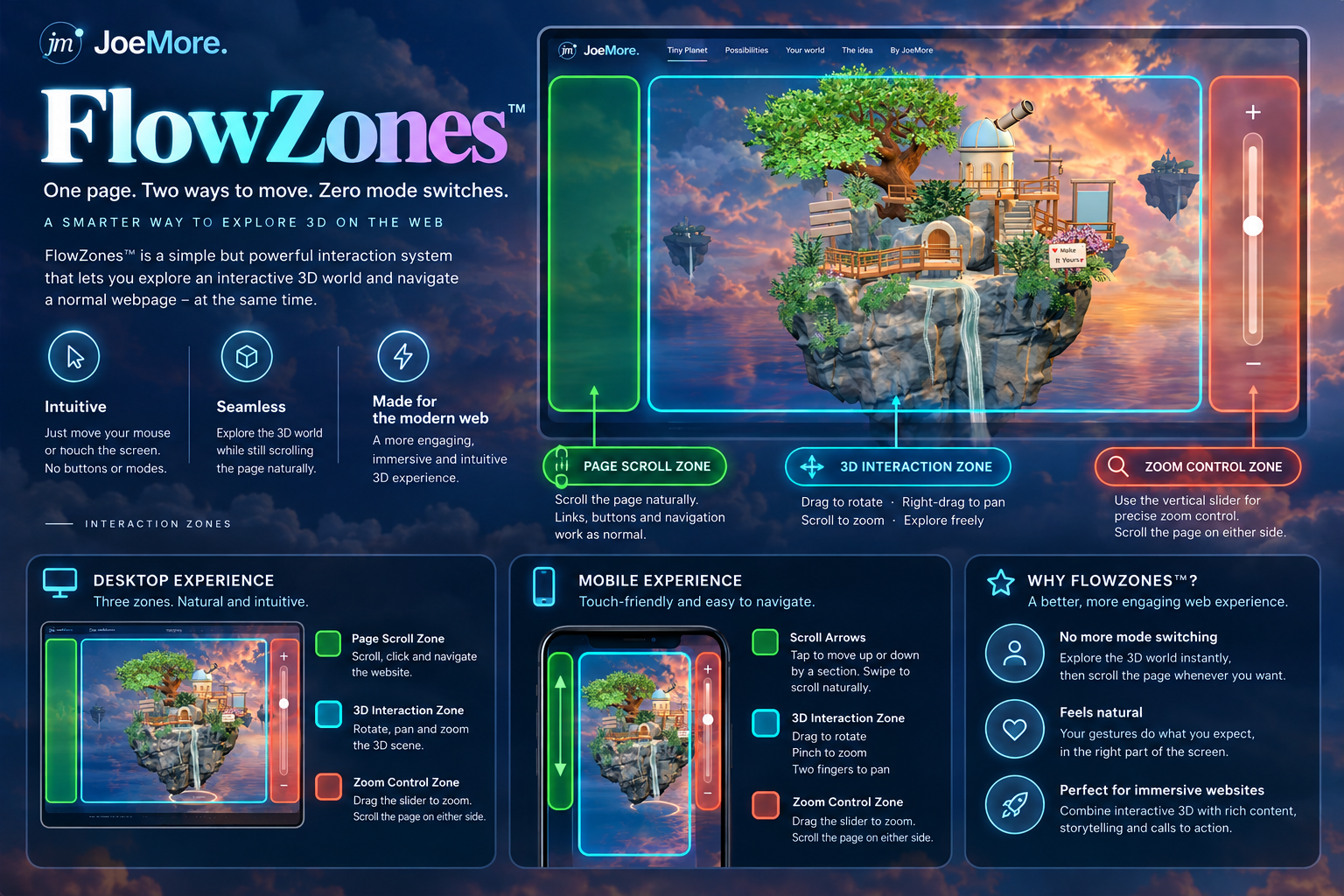
Open the full-size FlowZones infographic. The mobile arrows shown above move the page by half the visible viewport; they do not jump between sections.
I built a tiny planet. Then I needed a way to scroll past it.
Tiny Planet started with a rather ambitious idea: put a miniature floating world inside a website. Trees, waterfalls, a little observatory, warm lanterns, the works.
Naturally, I wanted people to explore it. Drag to rotate. Zoom towards the observatory. Pan around and discover the small details beneath the tree.
There was just one slightly awkward problem. The gestures that explored the island also needed to navigate the webpage.
Scroll over the scene and the camera moved instead of the page. Drag a finger across the island on a phone and the world rotated instead of revealing the content below it. I had built a lovely little destination. Leaving it was becoming a user-interface problem.
Our first solution used an Explore 3D button, followed by Exit Explore. That separated the behaviours, but it made the island feel like a small application visitors had to enter and leave. I wanted people to explore, then carry on browsing without that ceremony.
The answer was to give different parts of the hero different jobs.
Introducing FlowZones™
One page. Two ways to move. Zero mode switches.
FlowZones is my name for a spatial interaction pattern: designated areas decide whether a gesture controls the page, the 3D camera or an explicit interface control. The gestures stay familiar. What changes is where each gesture belongs.
Move over the island to interact with it. Move to the surrounding page areas to scroll normally. Use a slim slider for deliberate zooming. On mobile, a separate scroll rail gives visitors an obvious route past the scene.
The name is slightly grander than the technology. The patent department currently consists of me, a screenshot and several brightly coloured rectangles.
Three areas, three jobs
The infographic uses green for page scrolling, aqua for the scene and coral for zoom controls. Those colours explain the boundaries; the finished website does not need permanent glowing borders.
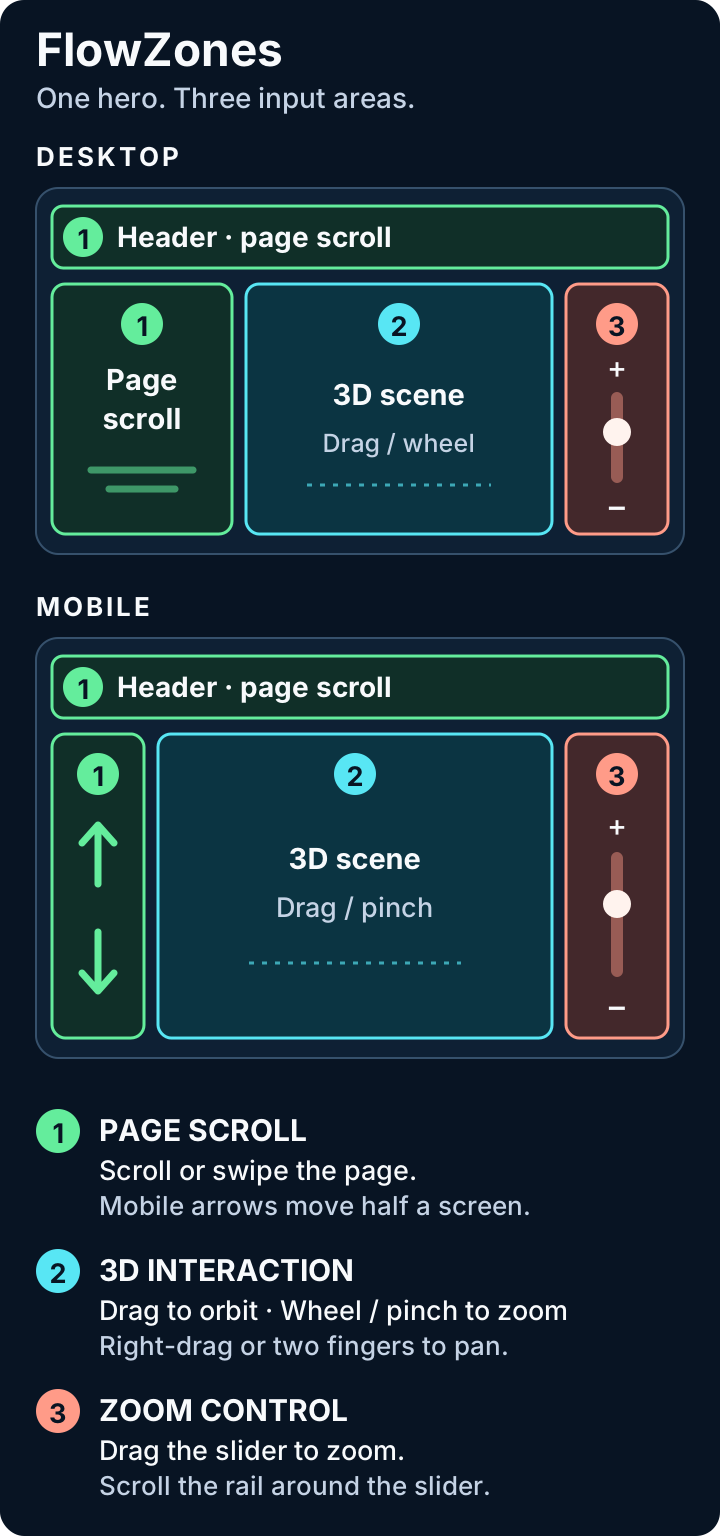
| Area | What visitors can do |
|---|---|
| Page Scroll Zone | Scroll the page, follow links, press buttons and select text. |
| 3D Interaction Zone | Rotate, pan and zoom the island within its camera limits. |
| Zoom Control Zone | Drag the slider to zoom; scroll the page in the surrounding rail. |
On desktop, the headline, navigation, surrounding space and lower hero remain webpage territory. The scene input region sits over the main island composition, with the zoom rail to its right.
Someone can scroll over the headline, move onto the island to inspect the observatory, then return to the page area and continue reading. Each gesture has a destination. The scene and the webpage do not both move in response to the same drag.
Desktop and mobile use the same idea
Inside our ready scene, left mouse drag rotates and right drag pans. The wheel changes camera distance. On touch screens, one finger rotates; two fingers pan, with pinching changing distance.
Outside that region, ordinary page behaviour remains available. The right-hand rail is scrollable around the slider; the slider's actual touch target owns its drag.
Mobile needs extra care because the island occupies much of the screen. A tiny invisible gap is a poor escape route. Our left rail contains up and down buttons, and visitors can swipe along it to scroll naturally. Tapping an arrow moves half the visible viewport, with smooth scrolling disabled when reduced motion is requested.
The arrow artwork is understated, but each button has a 44 × 44 CSS pixel hit area. The slider also has a 44-pixel-wide target. These controls belong to the hero and scroll away with it.
Separate what you render from what receives input
The most useful technical decision was separating the rendering layer from the interaction layer.
Our WebGL canvas still fills the hero. It can draw one continuous sky, island and reflective sea behind the composition. The smaller scene input element determines where camera gestures are accepted. Normal HTML sits above the artwork where needed.
Here is an illustrative layout, rather than an extracted Tiny Planet component:
<section className="hero">
  <canvas className="hero-render" />
  <div className="hero-copy">{/* Heading, links and buttons */}</div>
  <div className="world-input-layout">
    <div className="page-scroll-rail">{/* Mobile scroll buttons */}</div>
    <div className="scene-input" data-ready={ready} />
    <div className="zoom-scroll-rail">
      <input type="range" aria-label="Zoom towards island" />
    </div>
  </div>
</section>
The camera input element and the page controls are siblings. A scene handler should not accidentally receive every interaction with a button above it.
Define the regions through responsive layout, reserving room for the mobile rails. Copying coordinates from a screenshot creates boundaries that drift as text wraps or the viewport changes.
Three.js OrbitControls accepts a DOM element for its event listeners. That element can be the scene input region rather than the rendering canvas. Reconnect the existing controller or adapt its integration; two controllers competing over one camera will not improve anyone's afternoon.
Set touch behaviour before the gesture starts
The following CSS shows the policy, with positioning omitted:
.hero-render {
  position: absolute;
  inset: 0;
  pointer-events: none;
}

.scene-input,
.page-scroll-rail,
.zoom-scroll-rail {
  touch-action: pan-y;
}

.scene-input[data-ready="true"] {
  touch-action: none;
  cursor: grab;
}

.zoom-scroll-rail input {
  touch-action: none;
}
Keep touch-action: none local to the ready scene and slider. Applying it to the whole hero can also block the rails intended for scrolling. The browser considers the touched element and relevant ancestors, and changing the value after a gesture begins does not change that gesture's behaviour. MDN explains how touch-action is resolved.
CSS declares which native gestures are allowed. The camera controller still has to implement rotation, panning and zooming.
Keep drags predictable, and treat wheel input separately
If someone begins rotating the scene and crosses a rail, that drag should remain a rotation until release or cancellation. Our scene uses native pointer capture to retain the active pointer across those boundaries. The slider captures its own pointer too.
For your own adapter, handle release, cancellation and unexpected capture loss, and avoid competing with capture already managed by the controls library. Multi-touch should only recruit pointers that belong to the scene.
Wheel input needs separate treatment because pointer capture does not capture wheel events. Tiny Planet observes wheel activity within the hero and uses a short gap to identify a new sequence. Only the ready scene's handler cancels input used for camera zoom; the observer itself does not cancel page scrolling.
That is a practical policy, not a universal guarantee about trackpad momentum across boundaries. Test those transitions explicitly. Check modified wheel gestures too, especially browser zoom, rather than assuming that ordinary wheel tests cover them.
Wheel, pinch and slider need one zoom state
The slider must represent the same camera that wheel and pinch control. Otherwise it becomes a second source of truth: zoom with the wheel, touch the slider, and the view suddenly jumps.
Our implementation routes all three inputs into the same spring-based distance controller. Built-in control zoom is disabled so it cannot apply the same input a second time. The slider requests a target distance; the animation updates the actual distance and reflects it back into the slider when the thumb is not being dragged.
This simplified example shows our linear slider mapping:
function requestSliderZoom(percent: number) {
  const t = Math.max(0, Math.min(1, percent / 100));
  spring.demand = spring.restingMax
    + t * (spring.restingMin - spring.restingMax);
  spring.lastInput = performance.now();
}

function sliderPercent(distance: number) {
  const range = spring.restingMax - spring.restingMin;
  return Math.max(0, Math.min(100,
    (spring.restingMax - distance) / range * 100,
  ));
}
Here, 0 means farthest and 100 means nearest. These are camera-to-target distances, not camera clipping planes. The example assumes a valid positive distance range; the full controller also manages readiness, input timing, spring motion and collision bounds.
Spring resistance near the zoom boundary is a refinement, not a requirement for FlowZones. Ordinary camera damping and elastic boundary resistance solve different problems. Keep hard safety limits behind the softer motion, and account for nearby geometry after panning.
Reset View needs to restore the camera and target, clear spring velocity and update the slider together. Resetting the camera position while an old spring impulse remains active produces a very short-lived reset.
Keep 3D picking aligned with the image
Camera controls and clickable meshes are separate input systems. Moving camera listeners does not automatically fix object picking.
In React Three Fiber, connect the intended interaction source and review the event manager's coordinate calculation. Our canvas covers the full hero, so pointer coordinates are normalised against the rendered canvas rectangle, even though the input region is smaller.
Using the smaller region's width and height would stretch its coordinates across the canvas and send the raycaster away from the visible object. Scissored or multiple-view scenes need the corresponding render viewport instead. The R3F events documentation covers event sources and custom event managers.
This is easy to miss when rotation works perfectly. Try an actual mesh interaction after scrolling and resizing; working camera controls do not prove correct picking.
Loading and accessibility are part of the interaction
A loading poster should not reserve a giant gesture trap. Until our scene is ready, its input region stays noninteractive and the zoom slider is disabled. If WebGL fails, the poster, page content and navigation remain available, with a way to retry.
Reduced-motion and data-saving preferences can start Tiny Planet in a static preview. Visitors can choose to load the scene. That loading choice serves a different purpose from repeatedly entering and leaving an exploration mode.
The small controls need ordinary HTML engineering: labelled buttons, a native range input, visible focus and useful value text. Up means closer; down means farther. Our slider reports its value as a percentage towards the island.
Keep keyboard navigation and page-scroll keys usable. Only handle slider keys while the slider is focused. Provide Reset View and a route to the content beyond the hero; our page includes a skip link as well as normal navigation.
Remove listeners and release obsolete scene state on unmount. “Zero mode switches” describes the visitor experience. Internally, loading, ready, dragging and failed still need distinct behaviour.
What I would check before shipping
A convincing screenshot cannot prove that the interaction works. This is the short acceptance list I would use for another FlowZones hero:
- Wheel over HTML or a rail: the page moves without camera zoom.
- Wheel inside the ready scene: the camera zooms without page movement.
- Drag across a boundary: the active gesture stays predictable until release.
- Alternate slider, wheel and pinch: one camera state stays synchronised.
- Swipe the mobile rail or tap its arrows: the page moves without rotating the island.
- Reset during spring motion: camera, target and slider settle together.
- Resize, scroll, load slowly or fail WebGL: navigation and picking remain usable.
- Check keyboard, reduced motion, modified wheel gestures and touch assistive technology.
Our guide overlay exposes the actual input regions, which makes boundary checks much easier. Use a mouse, trackpad and physical touch devices. A narrow desktop window can reveal layout problems; it cannot stand in for testing on a phone.
Explore the world. Keep the webpage.
FlowZones suits an explorable 3D hero with ordinary content beneath it. It could also help a configurator or interactive portfolio, but a decorative animation may need no camera controls at all.
There is a real trade-off: someone swiping the centre of the island expecting page scrolling will rotate it. The pattern relies on clear hints and discoverable, comfortably sized page areas. If visitors struggle to leave, improve those routes or reconsider the interaction policy.
You can try FlowZones in the Tiny Planet demo.
The part I like most is that the solution did not require rebuilding the island. It required deciding which parts of the interface should respond to gestures we already use.
Render the world wherever it looks best. Capture input only where it makes sense. Keep a clear route through the page.
That is FlowZones: a small interaction idea, an unnecessarily official name, and one less button between a visitor and a tiny floating planet.